The 4 best screenshot organizer apps for Mac (2026)
Screenshots are how most of us keep receipts, tickets, IDs and addresses. Finding the right one later is the hard part. Here are four apps that help, each in its own way, and what macOS does on its own.
The best screenshot organizer apps for Mac in 2026 are Shotwise (best for sorting screenshots you keep as records and finding them by the words inside), Keep It Shot (best for AI-written file names), CleanShot X (best if you also want a better capture tool with on-device text recognition) and Eagle (best for designers who collect visual references). If you only want screenshots off your Desktop, change where macOS saves them in the Screenshot app's Options.
Disclosure: We make Shotwise, one of the apps on this list. We’ve tried to describe every app fairly, using only what each developer says on its own site. Prices and features checked 1 November 2026.
“Screenshot organizer” means different things to different people. Some want screenshots off the Desktop and into folders. Some want to search them by what they say. Some want good file names instead of “Screenshot 2026-10-12 at 8.42.17 PM”. And for the screenshots that hold an ID or a card number, many want them out of sight. No app does all of that the same way, so each pick below is labelled by the job it does best.
Quick comparison
| App | Best for | Price model | Reads the text inside? | Sorts automatically? |
|---|---|---|---|---|
| Shotwise | Screenshots kept as records | One-time purchase | Yes, on your Mac | Yes, into eight shelves |
| Keep It Shot | AI-written file names | Free plan with credits; monthly plans; or a one-time plan | Yes, when it renames a file | Not described on its site |
| CleanShot X | Taking and annotating screenshots | One-time Basic; Pro subscription | Yes, on-device, to copy text | No; capture history for up to a month |
| Eagle | Designers’ reference libraries | One-time purchase, 30-day trial | Not mentioned on its site | Tags by folder (Auto Tag) |
Prices and features checked 1 November 2026 on each developer’s website. Check the official site before you buy.
1. Shotwise: best for screenshots you keep as records
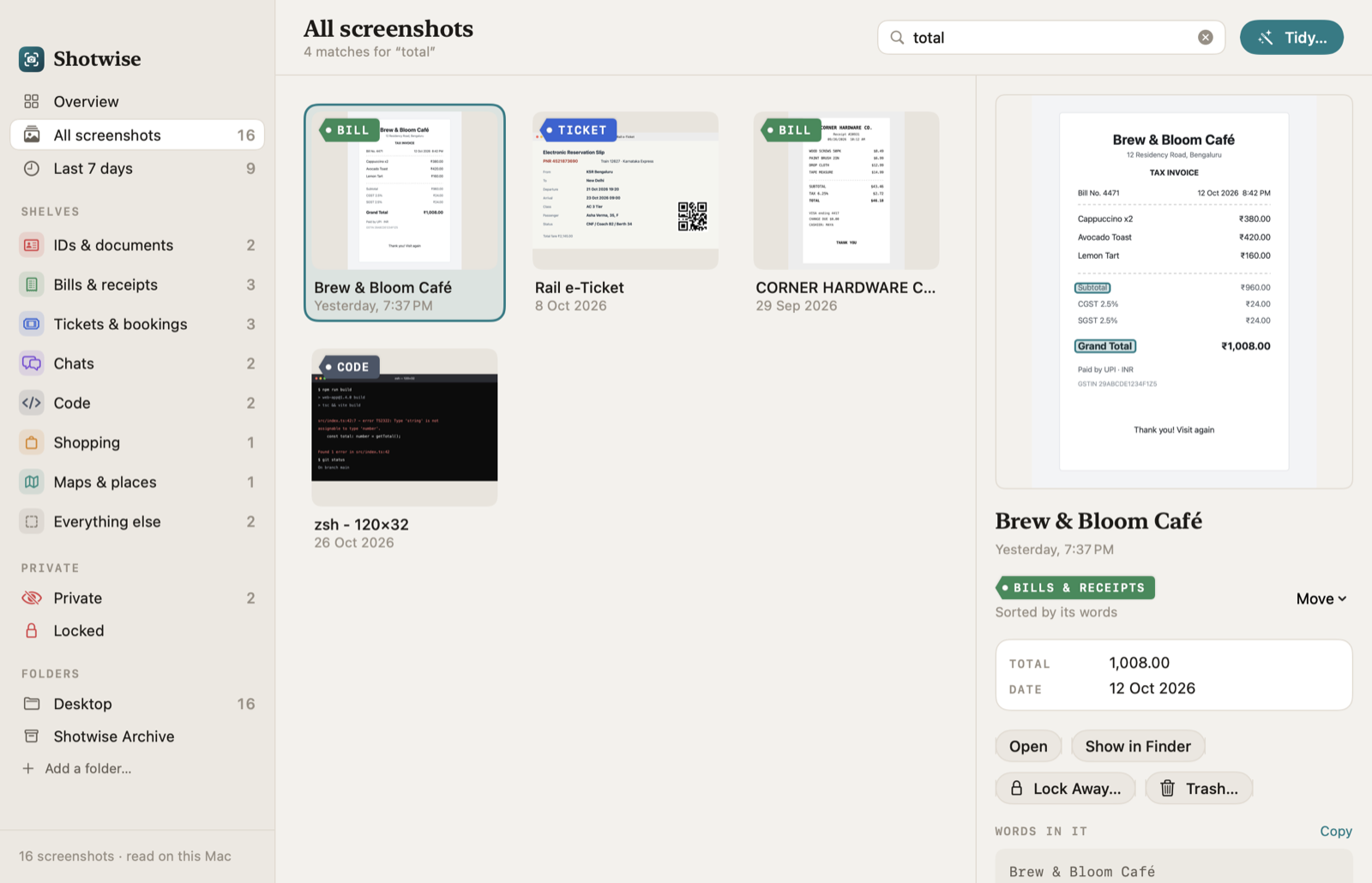
Shotwise is our app. It reads the folder your Mac saves screenshots to, plus any folder you add, and reads the words in each screenshot with Apple’s on-device text recognition. Then it puts each one on a shelf from what it says: a receipt says “subtotal” and shows prices, a boarding pass says “gate” and “seat”, a chat is a column of timestamps.
Standout features
- Search by the words inside. Every word must match, capitals and accents don’t matter, and “1299” finds “₹1,299”. Matching lines are outlined on the screenshot.
- Eight shelves: IDs & documents, Bills & receipts, Tickets & bookings, Chats, Code, Shopping, Maps & places, and Everything else. Move one to the right shelf and it stays.
- Key facts beside each screenshot: a bill’s total, a booking’s PNR, a flight number, the date.
- Private screenshots blurred: IDs and documents, and any screenshot with a card, ID, PAN, passport or bank account number, checked with the number’s own check digit.
- A locked area that encrypts screenshots on your Mac and opens with Touch ID or your password.
- Tidy into one folder per shelf or per month, with optional clear names, or clear out old ones to the Trash. Every tidy can be undone.
What it doesn’t do
- It doesn’t take screenshots or annotate them. Keep using ⇧⌘4 or a capture tool.
- It doesn’t write names with AI. Its clear names come from the screenshot’s own first line, shelf and date.
- Shelving works best with English words; handwriting mostly won’t be read.
- It needs your permission to read the Desktop (or wherever your screenshots go). macOS asks once.
Price: one-time purchase, no subscription, no account: ₹1,299 for 1 Mac, ₹2,199 for 3, ₹2,999 for 5. Free updates.
2. Keep It Shot: best for AI-written file names
Keep It Shot is a Mac app that uses AI to give your screenshots descriptive file names. When it renames a file, it also reads the text in it and writes a short description and keywords, which go into a search index that its site calls “offline, fully private”.
Standout features
- Batch renaming “in just two clicks”, and automatic renaming for new screenshots.
- One click puts the original names back.
- A keyword search over the text, descriptions and keywords it has gathered.
Limits
- Renaming uses credits, so heavy use means a monthly plan or bringing your own OpenAI API key.
- Its site doesn’t describe sorting into folders or categories, or any special handling for IDs and card numbers.
- Its site doesn’t list a macOS version requirement.
3. CleanShot X: best if you also want a better capture tool
CleanShot X replaces the built-in screenshot tool with a much richer one. It isn’t an organizer first, but two of its features help: it can copy the text out of any image, on your Mac, and it keeps a history of recent captures you can browse, filter by type and restore.
Standout features
- “Copy text from any image”, including scanned documents, plus QR code reading.
- Capture history for up to one month.
- With CleanShot Cloud, you can find captures by their content and tags.
Limits
- Its local history isn’t searchable by text; content search is a Cloud feature.
- It doesn’t sort screenshots into categories or protect private ones.
4. Eagle: best for designers collecting visual references
Eagle is an asset manager for designers: it collects, organizes and searches images and design files in one library. Screenshots are one kind of asset among many, and its folder-based Auto Tag gives every asset in a folder the folder’s tags.
Limits
- Its site doesn’t mention reading the text inside images.
- It’s built for visual collections, not for receipts, tickets and IDs.
The built-in option: Screenshot options, Preview and Terminal
Save screenshots somewhere other than the Desktop
Press ⇧⌘5, click Options, and choose a folder under “Save to”. New screenshots go there instead of the Desktop. You can also send them to the clipboard.
Copy the text out of a screenshot
Open it in Preview and select the text with the pointer, as if it were a document. This is Live Text, and it works one screenshot at a time.
Change the folder from Terminal
The same setting, from Terminal (make the folder first):
mkdir -p ~/Pictures/Screenshots
defaults write com.apple.screencapture location ~/Pictures/Screenshots
killall SystemUIServer
To go back to the Desktop, run the same command with ~/Desktop.
A Smart Folder of screenshots
In Finder, choose File › New Smart Folder, add the condition “Name begins with Screenshot”, and save it to the sidebar. It shows every screenshot on the Mac, newest first, wherever it is.
Spotlight sometimes finds words inside screenshots, but Apple doesn’t document it and results vary between Macs, so don’t rely on it for something you need to find again.
How we picked
- Sold and maintained in 2026, with a native Mac app.
- A distinct job. Each pick helps with screenshots in a different way, so some combine well (a capture tool plus an organizer).
- Facts from the developer. Everything here comes from each developer’s own site, checked 1 November 2026. We left out apps whose official site we couldn’t find.
- No scores or ratings. We describe what each app does and doesn’t do.
We make Shotwise. We ranked it first because it’s the only app here built just to sort and find the screenshots you keep as records. If you want AI file names or a capture tool, the others are the better fit.
FAQ
How do I organize screenshots on a Mac?
Start by changing where they’re saved: press ⇧⌘5, click Options and pick a folder under Save to. Then either file them by hand, use a Finder Smart Folder for names that begin with Screenshot, or use an app such as Shotwise that sorts them by what they say.
Can I search the text inside screenshots on a Mac?
One at a time, yes: open a screenshot in Preview and select its text. To search all of them by their words, use an app that reads them, such as Shotwise, which does it on your Mac.
How do I stop screenshots cluttering my Desktop?
Press ⇧⌘5, click Options and choose another folder under Save to, or run defaults write com.apple.screencapture location followed by a folder path in Terminal, then killall SystemUIServer.
Is it safe to keep screenshots of IDs on my Mac?
Anyone who can open your files can open them. Move them somewhere private, encrypt them, or use an app with a locked area, such as Shotwise, which encrypts them and opens them with Touch ID.
Where are screenshots saved on a Mac?
On the Desktop, unless you chose another folder in the Screenshot app’s Options (⇧⌘5 › Options › Save to).
Key takeaways
- Pick by job: records you need to find (Shotwise), AI file names (Keep It Shot), a better capture tool (CleanShot X), a design library (Eagle).
- ⇧⌘5 › Options › Save to moves new screenshots off the Desktop for free.
- Preview reads the text in one screenshot at a time; searching all of them needs an app that reads them.
- Screenshots of IDs and cards are as readable as any other file unless you lock them away.